
How to Clean a Laptop Fan: The Right Way to Do It Without Damaging Your Machine
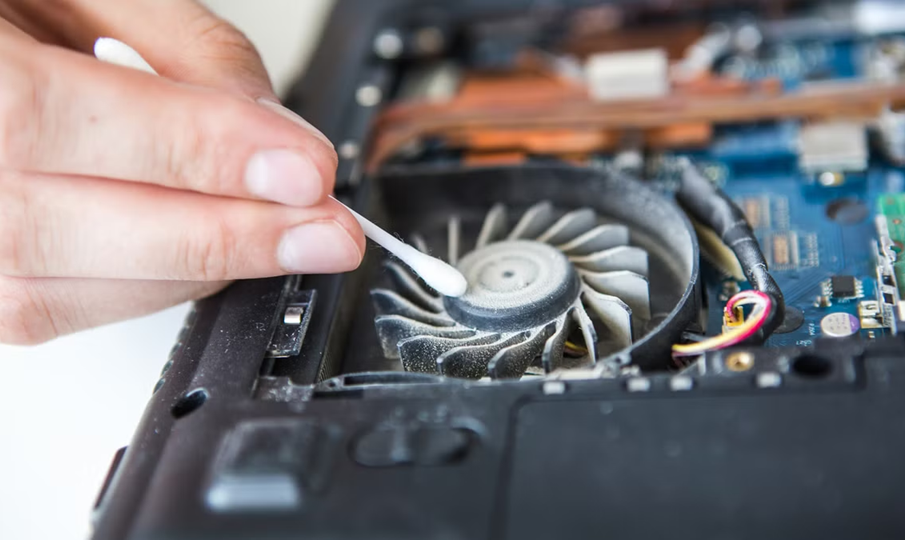
The safest and quickest way to how to clean laptop fan without opening the machine is to use short, controlled bursts of compressed air aimed directly into the ventilation vents. Hold the fan in place with a toothpick through the vent so it does not spin freely while you blast it—a fan spun too fast by air pressure can damage the bearings. This method takes about five minutes and handles most routine dust buildup.
For a deeper clean – especially if your laptop is running significantly hotter than it used to – opening the back panel and cleaning the fan directly gives far better results. Here is how to do both safely.
Signs Your Laptop Fan Desperately Needs Cleaning
- The fan runs loudly or constantly, even when the laptop is doing light tasks
- The bottom of the laptop gets noticeably hot during normal use
- The laptop throttles performance (slows down) to manage heat
- You can see visible dust clogging the vent grilles when you look closely
- The machine shuts down unexpectedly – thermal protection kicking in
Dust is the silent killer of laptops. A thick layer of dust on the fan and heatsink acts as insulation, trapping heat that the cooling system is trying to expel. Temperatures can climb 10-20°C above normal in a heavily clogged machine – and sustained high heat shortens the lifespan of every component inside.
What You Need
| Tool | Purpose / Notes |
| Compressed air can | Main cleaning tool. Use short bursts – sustained pressure can freeze components |
| Thin toothpick or plastic tool | Hold fan blades still through the vent while spraying |
| Soft brush (pastry brush or paint brush) | Gently loosen surface dust from vents before air |
| Screwdriver set (if opening) | Most laptops use Phillips #0 or Torx T5 screws |
| Microfibre cloth | Wipe down surfaces after cleaning |
| Isopropyl alcohol (90%+) | For stubborn grime if going inside the machine |
Method 1: Cleaning Without Opening (5 Minutes)
Best for regular maintenance every 3-6 months. Safe for all users regardless of tech comfort level.
1. Power the laptop down completely and unplug it from power.
2. Locate the ventilation grilles – usually on the bottom, sides, or rear of the laptop.
3. Insert a toothpick through the grille and gently rest it against a fan blade to prevent the fan from spinning.
4. Hold the compressed air can upright and use short 1-2 second bursts aimed into the vents. Angle slightly to push dust out rather than deeper in.
5. Move the toothpick to brace the fan in different positions and repeat from different vent angles.
6. Use a soft brush to sweep away any dislodged dust from around the vent openings.
7. Turn the laptop over and use the brush on any remaining surface dust. Wipe down with a microfibre cloth.
Do not tilt the compressed air can – doing so releases liquid propellant, which can damage components.
Method 2: Opening the Laptop for a Deep Clean
Do this once a year for heavy users, or if Method 1 has not solved the overheating issue. Check YouTube for a disassembly guide specific to your exact laptop model before starting – the process varies significantly.
1. Power down, unplug, and remove the battery if it is removable.
2. Unscrew the bottom panel – keep screws organised (a strip of tape with screws pressed into it works well).
3. Ground yourself before touching components – touch a metal surface to discharge static electricity.
4. Locate the fan and heatsink assembly. Use compressed air to clean the fan blades directly, and a soft brush for the heatsink fins.
5. If there is a thermal pad or dried thermal paste on the CPU/GPU contact, this is a good time to replace it – dried thermal paste is a major heat contributor in older laptops.
6. Reassemble carefully, ensuring all screws are returned and no cables are pinched.
How Often Should You Clean It?
| Usage Pattern | Recommended Cleaning Frequency | Method |
| Light home use, clean environment | Every 12 months | External compressed air |
| Daily work use, desk environment | Every 6 months | External + open once a year |
| Gaming, heavy load, carpet/fabric surfaces | Every 3-4 months | Open and clean thoroughly |
| Pet owner (hair everywhere) | Every 2-3 months | External + open every 6 months |
One Thing People Often Forget
Cleaning the fan is only half the job. The heatsink – the metal fins that the fan blows air through – gets clogged too, often with a solid mat of compacted dust. A fan spinning freely but blowing through a blocked heatsink does almost nothing. When you open the laptop, always address both.
And if your laptop is more than three or four years old and still running hot after a thorough clean, consider replacing the thermal paste on the processor. It dries out over time and becomes far less effective at transferring heat – a $5 tube of paste and 20 minutes of work can drop temperatures by 15°C or more on an older machine.



Leave a reply




-
Appropriate Color Collocation For Summer time Clothing
Summer time time time can be used. Isn’t it here i am ...